
Why Choose a 4x4 HDMI Matrix Switcher?

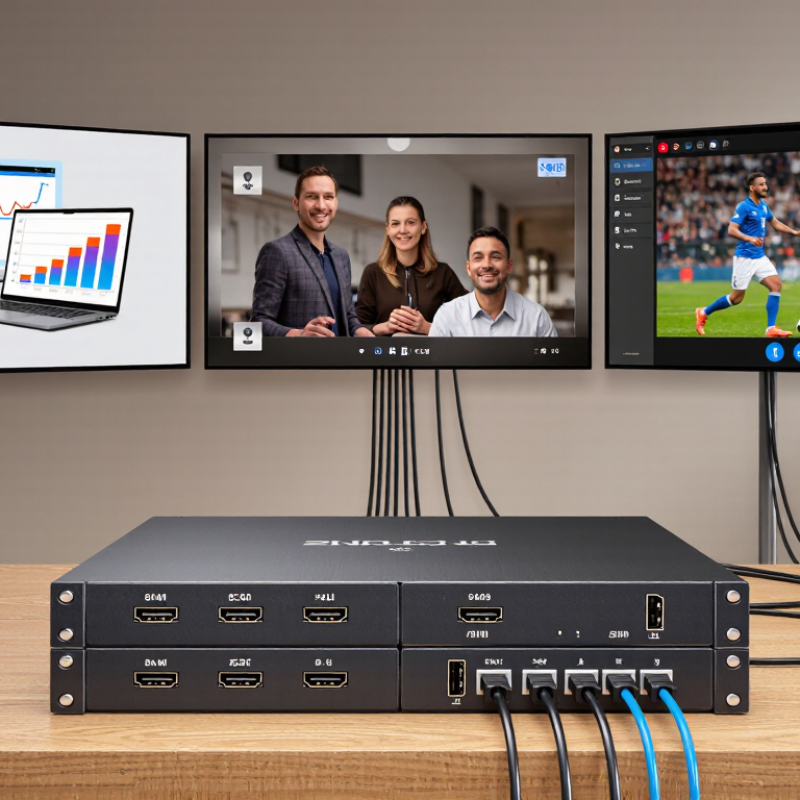
A 4x4 Hdmi Matrix Switcher gives four displays independent access to four HDMI sources. In a meeting room, that can mean sending a laptop presentation to the front screen while a camera feed remains on a confidence monitor. In a sports bar, different screens can show separate games without unplugging cables. The benefit is control, not magic. A matrix routes signals; it does not automatically improve picture quality or fix a weak source.

For a practical design perspective, Jordan Lee, a composite AV integration specialist, puts it this way: “A matrix earns its place when each display needs the right source at the right time.” This is an illustrative quotation, not a verified statement from a real-world expert. The idea still captures the buying question: do your screens need independent content, or would a simple splitter do? Check resolution support, HDCP compatibility, audio handling, and control options before choosing a model. Those details matter when a 4K source meets an older display, or when a remote must switch inputs reliably across a room. Small details count. A 4x4 HDMI Matrix Switcher can simplify a tidy installation, but it also adds configuration and cost. That trade-off deserves a second look. The sections ahead explain where the flexibility helps, what to check before purchase, and when a simpler setup may be enough.
Why Choose a 4x4 HDMI Matrix Switcher?

What a 4x4 HDMI Matrix Switcher Is and How It Routes Signals

A 4x4 HDMI matrix switcher accepts four HDMI sources and sends them to four displays. Each output can usually select a different input, so a media player can feed one screen while a laptop feeds another. The same source can also be routed to several outputs. That is the key difference from a basic splitter, which commonly duplicates one signal across its outputs. Small detail. Routing choices can change as viewing needs shift.

In a typical setup, HDMI cables connect sources to the matrix’s inputs and displays to its outputs. A control panel, remote, or network interface may let an operator choose each route; available controls vary by model. For example, a meeting room could show a presentation on the main display while sending a camera feed to a confidence monitor.

Check supported resolution, refresh rate, and copy-protection compatibility before installation. EDID settings can also affect how a source detects a display’s capabilities. Cable length matters, too; a long run may need suitable extension equipment.

The routing concept is simple, but mixed displays can make setup less predictable than expected. A quick test with every source and screen helps reveal mismatches before daily use.

How Independent Source-to-Display Switching Works

Why Choose a 4x4 HDMI Matrix Switcher?
How Independent Source-to-Display Switching Works

A 4x4 HDMI matrix gives four sources and four displays separate routing choices. A laptop can feed the conference-room screen while a media player feeds a lobby display. At the same time, a document camera can appear on a second screen. These routes can change without moving cables. That is the key difference from a basic splitter, which sends one source to multiple displays. In a real installation, staff might switch routes from a control panel or room system, depending on the matrix model. Small detail, big relief.

AVIXA’s 2024 Industry Outlook and Trends Analysis estimated global professional audiovisual revenue at $306 billion in 2023, with a forecast of $402 billion by 2029. That broad market figure does not prove every venue needs a matrix. It does show the scale of professional AV environments where flexible signal routing matters. Before installation, check each source and display’s resolution, refresh rate, and HDCP requirements. A matrix cannot fix an incompatible signal. Also verify EDID behavior; it can affect what a source sends. The awkward truth: four inputs and four outputs do not guarantee four trouble-free routes. Test the actual devices, cables, and displays together.

Key Benefits for Flexible Multi-Screen Setups

A 4x4 HDMI matrix switcher gives a control room, classroom, or event space more freedom to route video. Four sources can feed four displays, and each screen can show a different source or share one. A laptop presentation can appear on the front display while a camera feed stays on a confidence monitor. That flexibility reduces cable swapping and keeps the setup calmer when plans change. Less scrambling.

For multi-screen installations, independent routing is the practical advantage. Staff can send a media player to a lobby screen, a computer to a meeting display, and a camera view to another monitor. Many units also support remote control, which helps when the equipment rack sits across the room. Check resolution, refresh rate, audio handling, and HDCP compatibility before buying; a mismatch can cause blank screens or reduce image quality. Test the full signal chain, including cables and displays, rather than relying only on specifications. Fewer interruptions. The setup is not always plug-and-play, either. An overlooked compatibility setting may take more time to diagnose than expected.

Why Choose a 4×4 HDMI Matrix Switcher?

Possible source-to-display routing configurations by matrix size

A 4×4 matrix can connect up to four HDMI sources to four displays. Assuming each output can independently select any input, it allows 256 possible routing configurations (4⁴), including sending the same source to multiple displays.

Common Uses in Homes, Offices, and Commercial Spaces

At home, a 4x4 HDMI matrix can connect four sources, such as a cable box, game console, and streaming player, to four screens. A family can watch a film in the living room while someone plays a console game elsewhere. The exact routing options depend on the model, so check whether each output can select a different source. That matters. For a small home with one television, this equipment may be more than needed.

In offices, a meeting room can share displays between staff laptops, a conference computer, and a room presentation system. One screen might show a video call while another displays a spreadsheet. In a training space, the presenter can send the same lesson to several screens without moving cables between sessions. Check supported resolutions and audio formats against the connected devices. Test before installation.

Commercial spaces often use separate screens in reception areas, shops, or restaurants. Staff can route a media player to several displays, or show different content in separate zones, depending on the matrix’s capabilities. A café, for example, might display a menu near the counter and event information in a seating area. Long cable runs, ventilation, and reliable power deserve attention. A matrix does not fix every signal problem; compatibility can still take patience to sort out.

Why Choose a 4x4 HDMI Matrix Switcher? - Common Uses in Homes, Offices, and Commercial Spaces

Setting Typical HDMI Sources Typical Displays Example Use Why a 4x4 Matrix Helps Planning Considerations
Home entertainment Streaming device, game console, Blu-ray player, cable or satellite receiver Living-room TV, bedroom TV, projector, patio display Send a movie source to the living-room TV while routing a game console to another display. Allows connected displays to select from multiple sources independently, subject to the matrix’s supported routing features. Check supported resolution, refresh rate, HDR formats, HDCP version, and whether audio can be routed or extracted as needed.
Home office or small meeting room Work laptop, desktop computer, document camera, video-conferencing system Conference-room display, presentation screen, confidence monitor, local desk display Show a presentation on the main screen while keeping a separate computer output on a preview display. Reduces repeated cable changes and can provide flexible source selection for more than one screen. Confirm laptop connectivity and any required adapters. For long cable runs, check whether the system needs active cables or HDMI extenders.
Office or training space Presenter laptop, room PC, media player, video-conferencing system Main display, secondary display, instructor monitor, overflow-room screen Route training content to selected screens and direct a conferencing source to a room display. Centralized switching can simplify multi-screen presentations and support different source-to-screen assignments. Plan control access, cable paths, audio routing, and compatibility with room control systems before installation.
Retail or hospitality venue Digital signage player, TV receiver, promotional media player, local computer Displays at a service counter, lounge, dining area, or entrance Distribute selected promotional or entertainment sources to different screens in the venue. Offers more flexible source distribution than connecting each screen directly to a single player. Verify that the chosen unit supports the required operating hours, content formats, control method, and cable distances.
Commercial control or demonstration space Workstations, playback devices, test equipment, presentation computer Operator monitors, demonstration displays, client-viewing screens, projection system Switch among several source devices and assign them to different displays for demonstrations or monitoring. Consolidates source-to-display connections in one system and can make changes without physically reconnecting cables. Confirm whether simultaneous outputs, video-wall functions, scaling, or independent audio control are required; these features vary by model.

A 4x4 HDMI matrix typically provides four HDMI inputs and four HDMI outputs, allowing compatible sources to be routed to compatible displays. Actual resolution, audio, control, and format support depends on the specific equipment and the entire signal path.

What to Check Before Choosing a 4x4 HDMI Matrix Switcher

Why Choose a 4x4 HDMI Matrix Switcher?

Before choosing a 4x4 HDMI matrix switcher, map every source to every display. A meeting room might need a laptop on one screen and a camera feed on another. Confirm that all four inputs and outputs can route independently, not just mirror one signal. Small details matter.

Check resolution, refresh rate, HDR, audio, and copy-protection support across the entire signal chain. The HDMI Forum’s HDMI 2.1 specification allows bandwidth up to 48Gbps, but a switcher’s port may support less. Match its stated capabilities to the source and display you actually use.

AVIXA’s 2024 Industry Outlook and Trends Analysis estimated global professional audiovisual revenue at $325 billion in 2024, reflecting the scale of increasingly connected AV installations. That figure is not a buying guide, though; compatibility is.

Ask about EDID management, which helps sources choose a display format, and HDCP support for protected content. Check whether the unit handles the audio formats your system needs. Test the cable lengths and control method, too. A rack label and a short routing test can prevent a frustrating installation.

Specs can still leave gaps. Confirm exact format combinations with the supplier before purchase, especially when displays have different capabilities.

Blogs