
How to Choose the Best Smart Whiteboard for Your Business

Choosing the right Smart Whiteboard can improve meetings, training sessions, and daily collaboration. However, the most expensive model is not always the best fit.

A reliable decision begins with your team’s real workflow. Consider room size, viewing distance, writing frequency, and the number of remote participants. A 65-inch display may suit a small meeting room, while a larger space may require stronger brightness and wider viewing angles. Test the writing response in person, if possible. A smooth pen experience matters more than impressive product images.

Compatibility also deserves careful attention. Check whether the Smart Whiteboard works with your existing video platforms, laptops, operating systems, and cloud storage. Security features should be reviewed by your IT team. Look for controlled access, regular software updates, user permissions, and clear data policies. These details can prevent frustrating interruptions later.

Do not ignore practical maintenance. Ask about warranty coverage, replacement pens, installation support, and training resources. A dependable supplier should explain limitations clearly, not only highlight advantages. User reviews can reveal issues that specifications hide, such as glare, weak speakers, or difficult software menus.

Budget matters, but total ownership cost matters more. Include installation, subscriptions, support, and future upgrades. We should also admit one uncertainty: every workplace uses technology differently. A model that performs well in a busy classroom may feel excessive in a small office. Compare your needs honestly, test key functions, and choose the board your team will actually use.
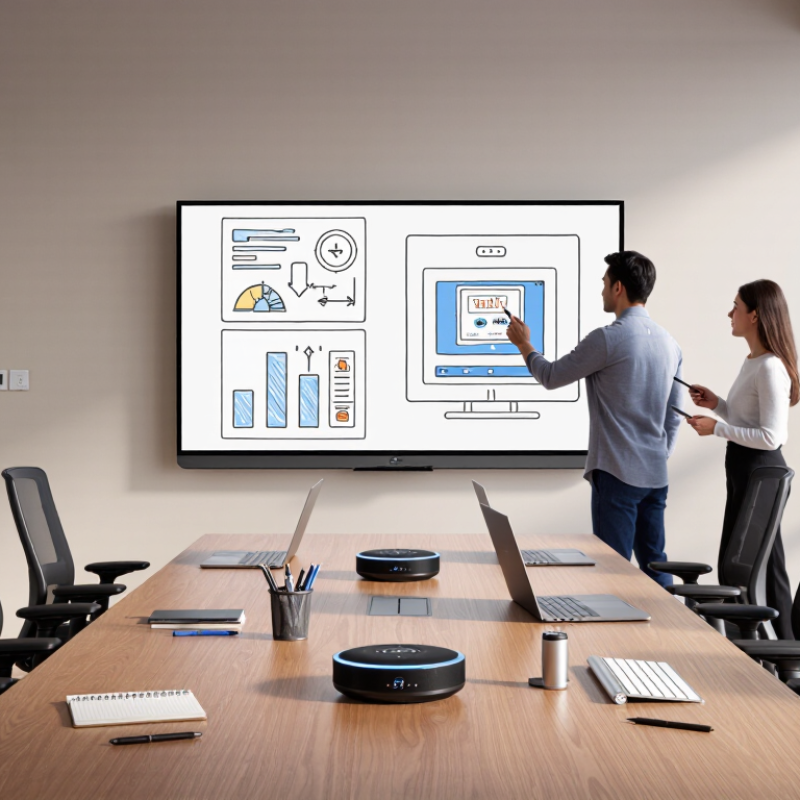
How to Choose the Best Smart Whiteboard for Your Business

Define Your Business Needs and Collaboration Goals

Before comparing smart whiteboards, define what your team needs to accomplish together. A sales team reviewing customer journeys may need a large, touch-responsive canvas and quick access to shared files. A hybrid design group may care more about remote participation, clear audio, and exporting annotated sketches. Get specific. Ask where meetings happen, who joins remotely, and what should happen to the work afterward. If ideas vanish into an unsearchable photo, the board has not solved much.

Set goals you can observe, not just features you can admire. Microsoft’s 2023 Work Trend Index found that 68% of surveyed workers wanted more uninterrupted focus time. That finding is a useful reminder: collaboration tools should make shared work easier, not add setup and follow-up chores. Track whether teams spend less time recreating notes, whether remote colleagues can contribute, and whether meeting decisions remain accessible. Small tests help. Try a representative meeting with real users, including someone who rarely speaks up. The first test may expose awkward habits, too. That is useful data.

Write down practical constraints before evaluating models: room size, typical group size, existing video equipment, network reliability, and accessibility needs. Decide whether people must write naturally, annotate documents, or move content between sessions. A board with many features can still be the wrong fit if staff avoid using it. Be honest about that risk. Define success in plain terms, such as “remote participants can edit the same plan” or “meeting notes are saved within two minutes.”

Compare Display Size, Resolution, and Touch Performance

Choosing a smart whiteboard starts with matching its display to the room. In a small meeting space, a 55-inch screen may work well; in a long conference room, people at the far end may struggle to read fine text. Check viewing distance, seating layout, and ambient light before deciding. A larger display is not always better if it overwhelms the wall or strains the budget.

Resolution affects how clearly charts, handwriting, and small labels appear. For a screen around 65 inches or larger, 4K resolution can keep detailed spreadsheets crisp. But resolution alone does not guarantee readability. Look at sample content from several seats away, and consider anti-glare performance near windows. A quick showroom test may not reflect your office lighting.

Tips: Test touch response with a few real tasks: write a sentence, move a diagram, and erase part of it. Check whether the board responds accurately near the edges and supports multiple users at once. Ask staff to try it, too. Their feedback may reveal friction that a polished demo misses. Touch performance can vary with screen size, software, and writing style, so avoid relying on specifications alone. A slightly slower response might be acceptable for planning, but frustrating during fast annotation.

How to Choose the Best Smart Whiteboard for Your Business — Compare Display Size, Resolution, and Touch Performance
Typical Use Suggested Display Size Resolution to Look For Approx. Pixel Density at 4K Touch Performance Buying Check Room and Viewing Considerations
Small meeting room 55–65 inches 3840 × 2160 (4K UHD) About 80 ppi at 55 inches; 68 ppi at 65 inches Look for at least 20 simultaneous touch points for shared annotation. Test writing near the screen edges and check palm rejection. Suitable for compact rooms and close viewing. Confirm that text and interface elements remain readable from the farthest seat.
Medium conference room 75 inches 3840 × 2160 (4K UHD) About 59 ppi Compare touch accuracy, writing smoothness, and whether multiple users can write at once. Ask for a live demonstration with the intended software. A practical size for group presentations and collaborative workshops; check sightlines from both sides of the room.
Large meeting or training room 86 inches 3840 × 2160 (4K UHD) About 51 ppi Check multi-user touch support, reliable palm rejection, and consistent response across the full panel—not only at the center. The larger image can improve visibility in deeper rooms. Consider installation height and whether seated participants can comfortably reach the writing area.
Large shared space or auditorium-style room 98 inches 3840 × 2160 (4K UHD) About 45 ppi Prioritize accurate tracking over the entire surface and test simultaneous writing with the maximum number of users expected in practice. Use when a single large display is needed for a broad audience. Confirm the room can accommodate the panel, mounting hardware, and viewing distance.

4K UHD resolution is 3840 × 2160 pixels. Approximate pixel density is calculated from the 4K pixel diagonal divided by the stated screen diagonal; actual visible area and specifications vary by model. Touch-point counts and performance features differ between displays, so verify the manufacturer’s specifications and test the exact unit before purchase.

Assess Software, Connectivity, and Device Compatibility

Choosing a smart whiteboard means checking whether its software fits the way your team actually works. List the tools staff use for meetings, notes, and file sharing, then confirm that the board can open and save common file types. Ask whether key features require paid subscriptions or a constant internet connection.

Test it in person. A five-minute trial can reveal confusing menus, slow pen response, or awkward handwriting conversion. Also check how easily users can export a session, manage access, and remove sensitive notes after a meeting. These small details matter.

Connectivity needs to match the room, not just the product sheet. Check available Wi-Fi, wired network ports, screen sharing, and connections for laptops or meeting-room cameras. If the board will handle video calls, test audio and screen sharing with the network conditions you expect at work.

Compatibility deserves equal attention: verify support for the computers, tablets, operating systems, and conferencing tools your staff already use. Bring a typical work file and a few devices to a demonstration. I once focused too much on display size and overlooked a clumsy sign-in process; it made routine meetings feel slower. That was a useful miss. Ask who will update the software, troubleshoot connection problems, and help new users get started.

Review Installation, Security, and Ongoing Support

A smart whiteboard is only useful when people can start a meeting without wrestling with cables or settings. Before choosing one, check the room’s wall surface, power outlet, Wi-Fi strength, and viewing distance. A large display can look impressive, yet feel cramped when a table sits close to the wall. Ask who will install it, how long setup usually takes, and whether staff receive hands-on training. During a trial, test screen sharing from different devices and confirm that the board wakes quickly. Small details matter. A pilot may feel slow, but it often reveals assumptions that a product sheet cannot.

Tips: Confirm mounting requirements before delivery. Test guest access, user permissions, and sign-in steps with ordinary staff accounts. Write down who handles updates and troubleshooting, including response hours and expected repair timelines.

Security and ongoing support deserve the same attention as display quality. Look for configurable access controls, encrypted connections, and a clear process for removing former employees’ accounts. Ask how software updates are scheduled and whether administrators can review device activity. A secure setup still needs practical maintenance. For example, decide who checks updates, replaces worn cables, and reports recurring connection drops. Keep support contacts and basic instructions near the room, not buried in an inbox. I would not assume every team will read a long manual; a short checklist is more likely to be used. Make sure the support plan fits your workday, especially if meetings depend on the board each morning.

Calculate Total Cost of Ownership and Select a Model

A smart whiteboard should be judged by its total cost of ownership, not its purchase price. Calculate the first-year cost, then project three to five years. Include hardware, wall installation, delivery, software subscriptions, user training, repairs, and eventual replacement. A model priced 2,000 dollars may cost more than a 3,000-dollar alternative after recurring licenses and service calls.

Energy and downtime deserve careful attention. ENERGY STAR reports that commercial buildings can waste up to 30% of their energy use. Check standby consumption and automatic sleep settings before purchasing. AVIXA’s 2024 Industry Outlook valued the professional audiovisual market at more than 300 billion dollars in 2023, showing how quickly workplace technology is expanding. However, market growth does not guarantee value. A large screen may remain unused if staff find sharing files difficult. That is a practical failure, not a technical one.

Tips: Request a five-year cost sheet from each supplier. Ask for license renewal prices in writing. Test annotation, wireless sharing, accessibility features, and security controls with real users. Record setup time and support response times. Also measure the room’s lighting, viewing distance, and wall strength. These details affect installation costs. My own caution is simple: projected savings often look precise, but adoption rates are usually assumptions. Recheck them after a 30-day pilot. Even a small training gap can weaken the expected return.

Blogs